Overview
The Default Transaction Configuration for Reimbursements defines how reimbursements from Ramp will be created in FENXT. These default values ensure all transactions meet the required fields in FENXT's APIs and help streamline transaction processing.
This guide explains how to configure the Reimbursements tab within the Default Transaction Configuration screen.
Accessing the Reimbursement Transaction Configuration Menu
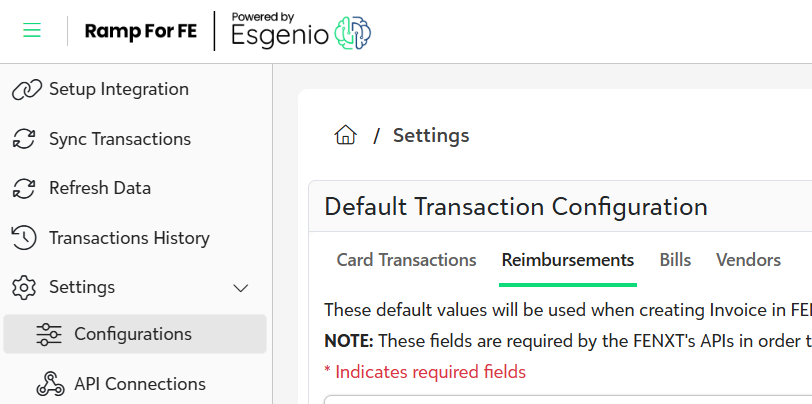
1. Navigate to Settings --> Configurations --> Reimbursements
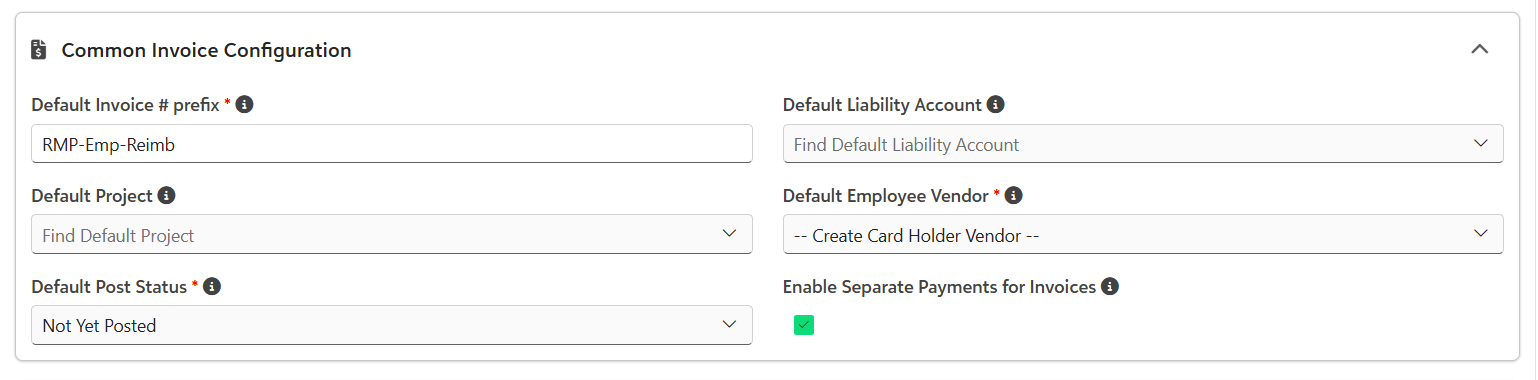
Common Invoice Configuration
- Default Invoice # Prefix - If an invoice number is created, determine what prefix will be used.
- Default Liability Account - By default, only 20 records will be shown. You can search in this field to select which account you would like to set as the default.
- Default Project - By default, only 20 records will be shown. You can search in this field to select which account you would like to set as the default.
- Default Employee Vendor - Determines whether or not to create a card holder vendor (if the employee does not exist) or to use a different vendor.
- Default Post Status - Determine the default post status when the invoice is created. Options are Not Yet Posted or Do not Post.
- Enable Separate Payments for Invoices - If checked, FENXT invoice will not be grouped with other invoices into a single payment to the vendor.
Attachment Syncing & Defaults
- Attachment Syncing & Defaults - Determines which attachment type to use as default.
- Turn off Attachment Syncing - If checked, attachments from Ramp will not be synced into FENXT. This is not recommended to use this setting.

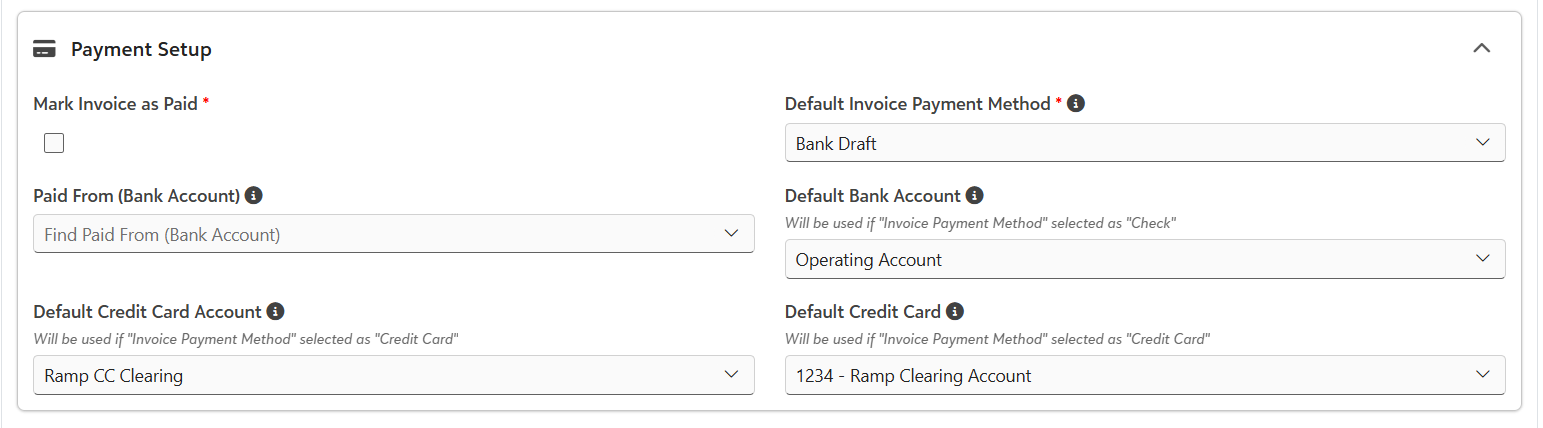
Payment Setup
- Mark Invoice as Paid - Determines whether or not to mark the invoice as paid when it comes into FENXT.
- Invoice Payment Method - Set the default payment method to be listed on the invoice.
- Payment Setup for Check
- Paid from Bank Account - The bank from which the invoice is paid.
- Default Bank Account - Select the default bank account to be used when the payment is check.
- Payment Setup for Credit Card
- Default Credit Card Account - Select the default credit card account for the invoice payment.
- Default Credit Card - Select the default credit card for the invoice payment.
NOTE: Please note that the Blackbaud API currently does not support bringing over ACH payments. For invoices that are paid via ACH, these will need to be manually marked as paid.
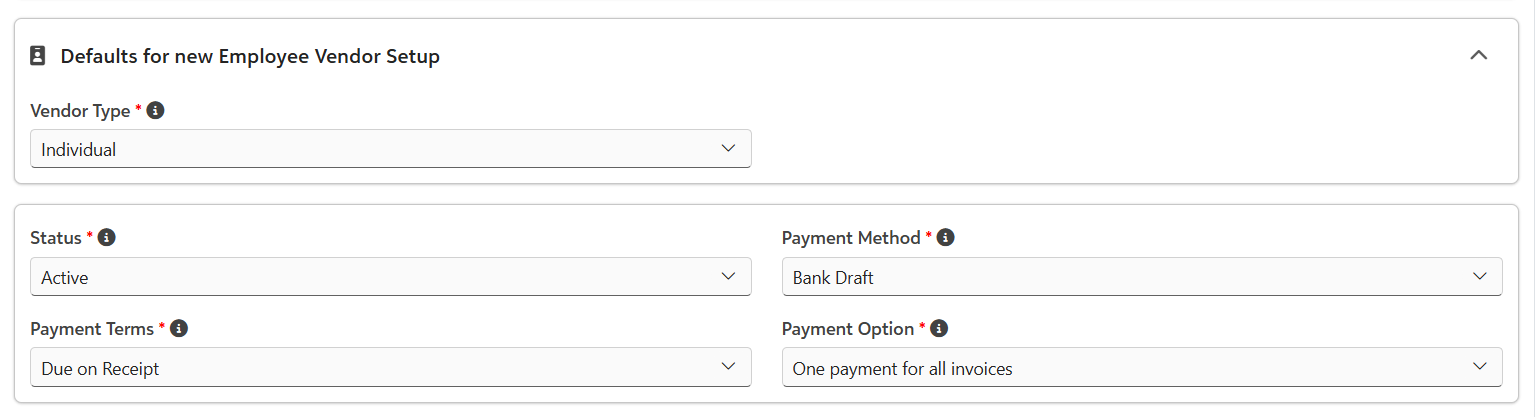
Defaults for New Employee Vendor Setup
- Vendor Type - Select Individual or Organization
- Status - The status of the vendor when created.
- Payment Method - The default payment method when creating the vendor.
- Payment Terms - The default terms when creating the vendor.
- Payment Option - The default payment option when creating the vendor.
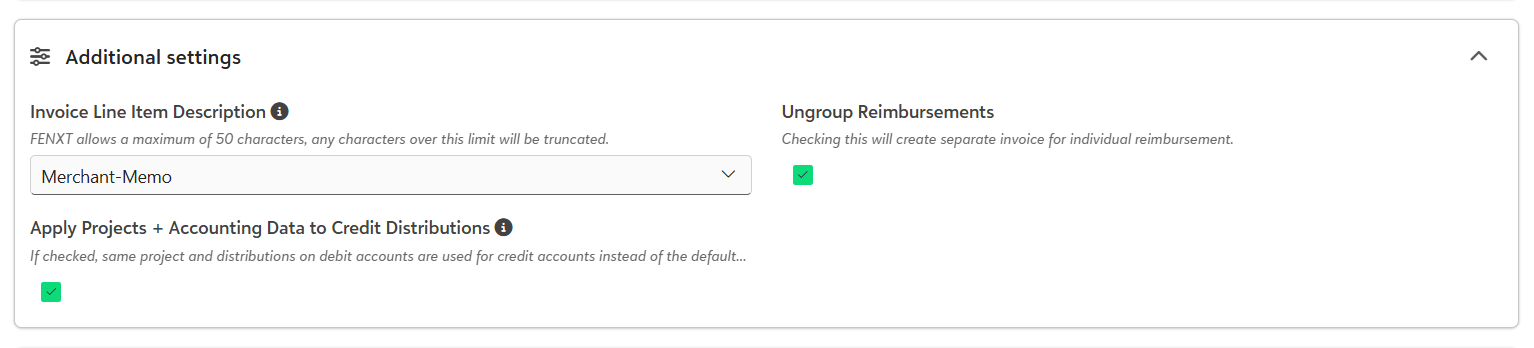
Additional Settings
- Invoice Line Item Description - Select how the line item description should be formatted on the invoice. You can include combinations of Employee Name - Merchant - Memo, Merchant - Memo, Employee - Memo, or just Memo
- Ungroup Reimbursements - Checking this box will create separate invoices for each reimbursement.
- Apply Projects + Accounting Data to Credit Distributions - If checked, same project and distributions on debit accounts are used for credits.
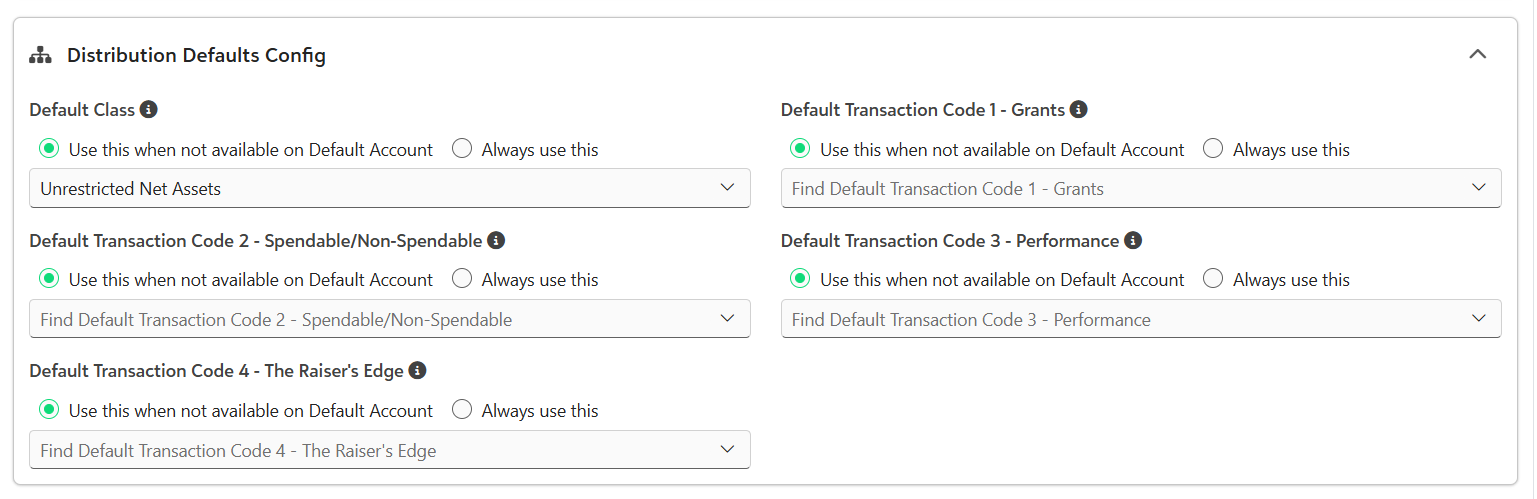
Distribution Defaults Configuration
- Class - By default, only 20 records will be shown. You can search in this field to select which account you would like to set as the default.
- Transaction Codes - If your organization uses the transaction codes, select for each transaction code whether you would like to use the code when not available on the Default Account or to Always use this.
Was this article helpful?
That’s Great!
Thank you for your feedback
Sorry! We couldn't be helpful
Thank you for your feedback
Feedback sent
We appreciate your effort and will try to fix the article